A free WordPress test site that does not expire
Most free WordPress test sites are gone in a day or a week, or live only on your own computer. Here is how the common options compare, when one of them is the better pick, and how to get an online WordPress with its own database, VS Code and SSH that is still there next month, free and with no card.
Four questions to ask
Before you put work into a free WordPress test site, check these on the provider's own page:
- Does it expire? Many free test sites are deleted after a day or a week.
- Is it online? A site on your own computer is fine for you, but a client or a colleague cannot open it.
- Can you reach the code and the database? Theme and plugin work needs the files, a terminal or SSH, and the database.
- Does it need a card? Some services ask for one before the first site.
Online test sites: how long the free ones last
From each provider's own page, checked on 4 November 2026:
- ZipWP: free sandbox sites stay active for 24 hours (zipwp.com/pricing).
- TasteWP: a free site lasts 2 days, or 7 days if you are logged in; no expiry from USD 2.98 a month (tastewp.com).
- SandyWP: free sandboxes expire after 7 days and are deleted with their files and database; SSH comes with the USD 9 a month plan (sandywp.com).
- WPSandbox: free temporary sites without an account; longer or no expiry on paid plans (wpsandbox.net).
- InstaWP: no free plan; a card is needed to start a site, and the cheapest site is USD 2 a month (instawp.com/pricing).
- Studio by WordPress.com: free preview sites stay up for 7 days after the last update, up to ten at a time (developer.wordpress.com/studio).
- Pantheon: two free sandbox sites; a sandbox older than four months with no Git activity for three months is frozen, and going live needs a paid plan (pantheon.io/plans/pricing).
- Uppcoder Spark: no expiry and no card; its own MariaDB database, VS Code in the browser and SSH; backed up every night.
Free and permanent, but not online
These never expire, because they run on your own machine. Nobody else can open the site unless you share it from there:
- WordPress Playground runs WordPress inside your browser. A temporary site is lost when you close or refresh the tab; a saved one is kept in browser storage, which the browser may clear (developer.wordpress.org/playground).
- LocalWP is a free desktop app with SSH and WP-CLI; Live Links share a site by giving others access to your computer (localwp.com).
- DevKinsta is free and runs on your computer in Docker, with Adminer for the database (kinsta.com/devkinsta).
When something else is the better pick
Said plainly, because the right tool depends on the job:
- Trying a plugin for five minutes: WordPress Playground. Nothing to sign up for, and nothing to clean up.
- Working offline on your own machine: LocalWP, Studio or DevKinsta.
- A plain WordPress site for each student on a course: WordPress.com's Student Plan, free for the first year when a teacher applies (wordpress.com/blog, 17 August 2026).
- Copying a live site into a test copy with one click: InstaWP, Studio and DevKinsta have that. Uppcoder has no such button; you move the site yourself, for example with a backup plugin.
What you get on Uppcoder's free plan
The free plan (Spark) runs one app with one database. No card needed, and no time limit: if we ever change or end it, you hear from us by email at least 60 days before. For WordPress that means:
- WordPress, the official release with WP-CLI, installed with the admin login you choose
- Its own MariaDB 11 database, connected for you
- Its own HTTPS address from the first minute, private until you switch it to public
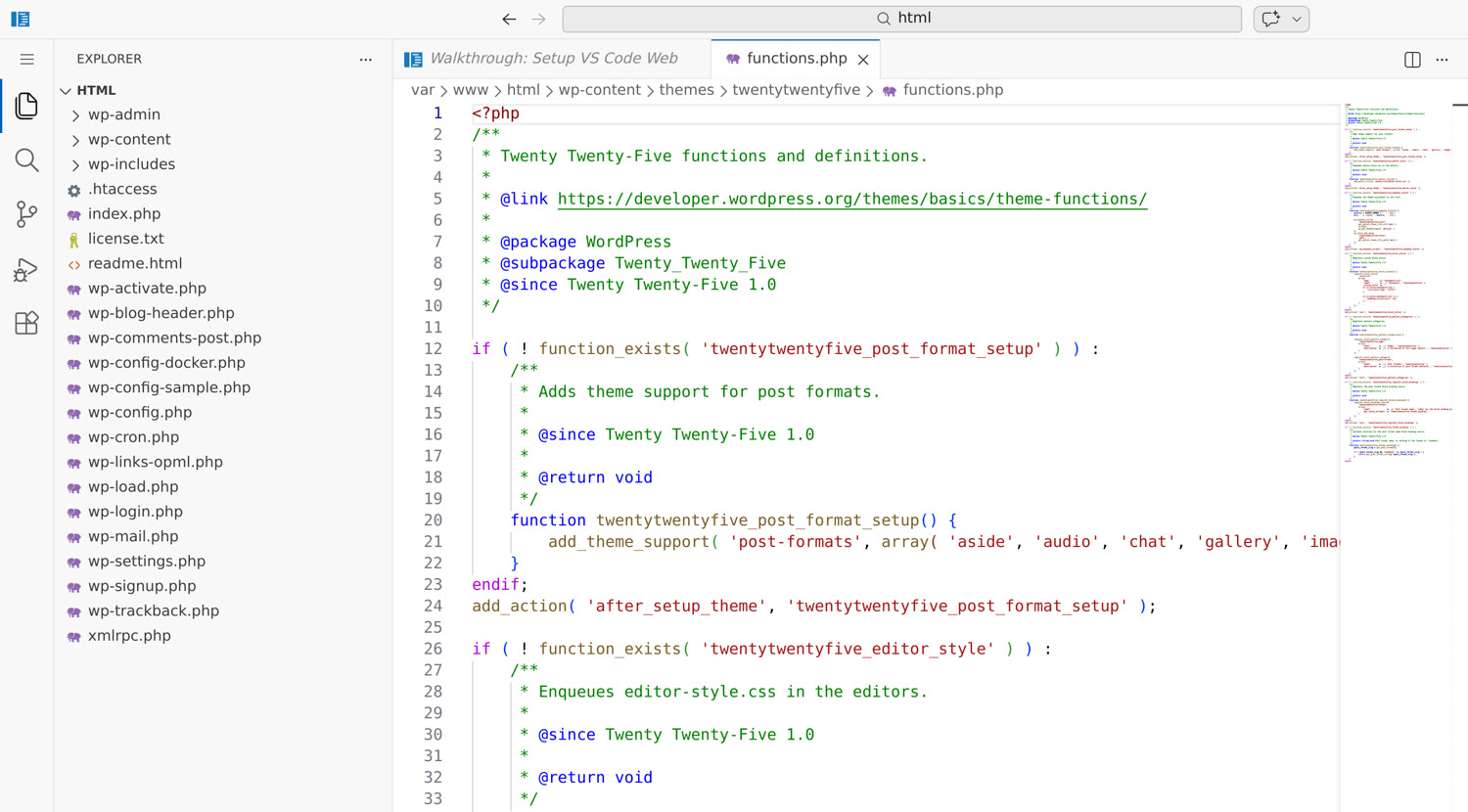
- VS Code in the browser on the site's files, and SSH for your own editor (VS Code Remote, Cursor, JetBrains Gateway, Zed), on the free plan too
- Core, themes, plugins and uploads kept on disk, and backed up every night to a separate server
- Websson, the company behind Uppcoder, runs its own WordPress sites on the same platform: lessons from Villa Bavigo
- Next: edit the theme over SSH from VS Code, Cursor, JetBrains or Zed
Start in a few minutes
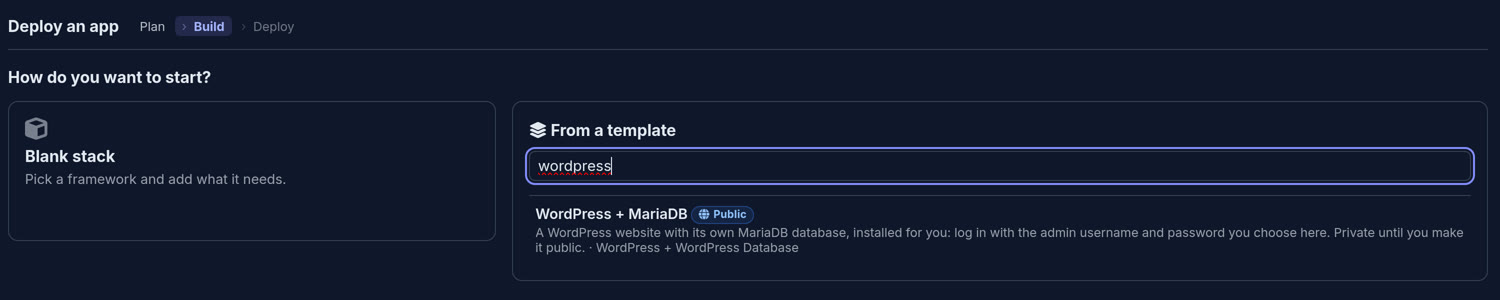
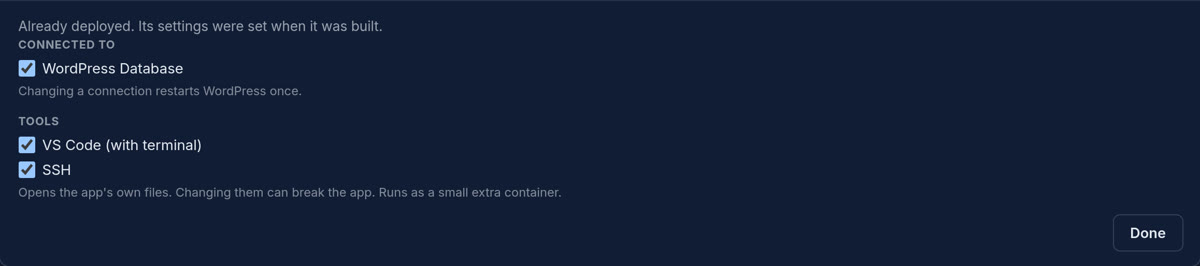
Sign up at portal.uppcoder.com and start the free plan (confirm your email first). Then Stacks, Create, From a template, WordPress + MariaDB. Give it a name, choose the admin password, and Deploy. For code, open the WordPress card and tick VS Code (with terminal), SSH, or both; WordPress keeps running while they come on.
Good to know
Said up front:
- The free plan runs one app with its database; WordPress and its MariaDB count as that one app
- Your own domain needs a paid plan; the free site has its own uppcoder address
- WordPress sends no email until you add an SMTP plugin with your mail provider
- One WordPress site; a multisite network is not set up for you
A WordPress test site that is still there next month: free, with no card.