Edit a WordPress theme over SSH from VS Code, Cursor, JetBrains or Zed
Work on a WordPress site's theme in the editor you already use, on the real site's files, with the change on the site the moment you save. Here is how to switch SSH on, connect each of the four common editors, and make a first change to a theme, on Uppcoder's free plan too.
What you need
Three things, all free:
- A WordPress site on Uppcoder. The free plan has one: Stacks, Create, From a template, WordPress + MariaDB.
- An SSH client. macOS, Linux and Windows 10 and 11 have one built in (ssh in Terminal or PowerShell).
- One of the editors below, or just the terminal.
Switch SSH on
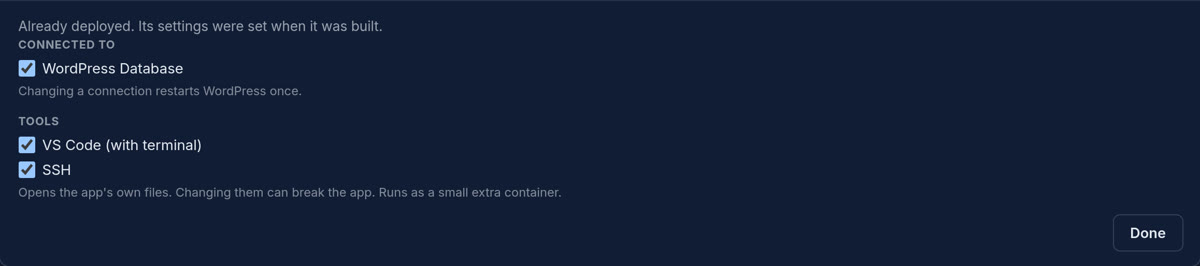
Open the stack, then Add to stack, and click the WordPress card. Tick SSH (and VS Code (with terminal) too if you also want an editor in the browser), then Apply. SSH is added beside WordPress: the site does not restart.
A key, and one block for ~/.ssh/config
Back on the stack's page, open Connect with SSH. Create a key for me makes a key: the public half goes to your account and the private half downloads to your computer. Or paste a key you already have in Settings, SSH Keys. Then copy the block under "For your editor" into ~/.ssh/config (on Windows, .ssh\config in your user folder). With a key the page made, the block ends with an IdentityFile line pointing at the download:
Host wordpress
    HostName <your-site>-editor.<server>.websson.cloud
    Port 2222
    User <your-site>
    StrictHostKeyChecking accept-new
    IdentityFile ~/Downloads/uppcoder_<date>_ed25519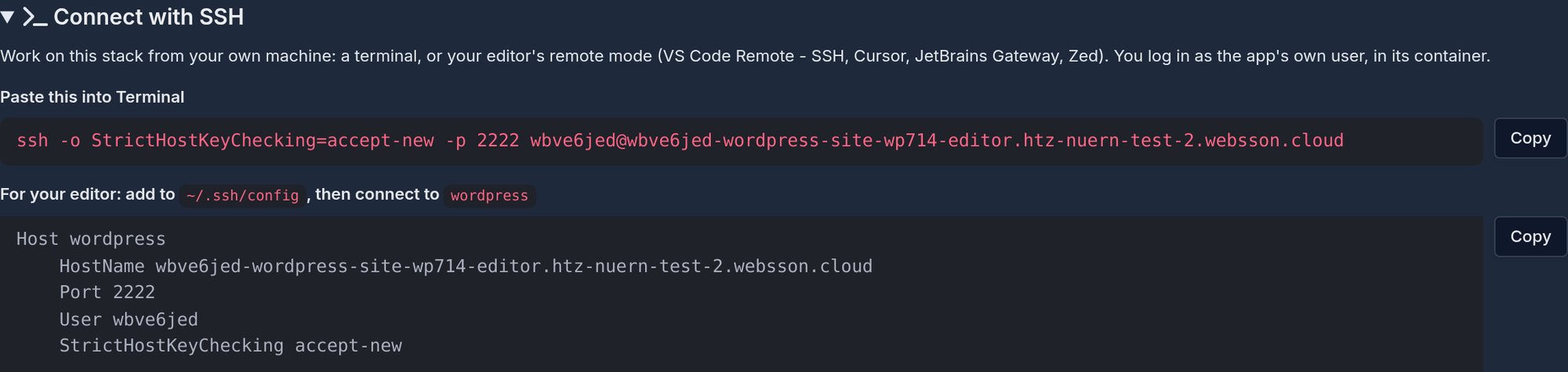
Check it from a terminal
One command, then you are in the site's folder, as the web server's own user, so every file you save keeps the owner WordPress expects:
$ ssh wordpress
$ pwd
/var/www/html
$ ls wp-content/themes
index.php  twentytwentyfive  twentytwentyfour  twentytwentythree
Connect your editor
Each editor uses the same "wordpress" entry. Open the folder /var/www/html once you are connected. From each editor's own docs:
- VS Code: install the Remote - SSH extension (ms-vscode-remote.remote-ssh), run Remote-SSH: Connect to Host... from the Command Palette and pick wordpress, then File, Open... and /var/www/html.
- Cursor: Cursor has its own Remote - SSH extension, published by Anysphere, the company behind Cursor. Install it from the Extensions view, then Remote-SSH: Connect to Host... as in VS Code.
- JetBrains Gateway (or Remote Development in a JetBrains IDE): SSH, New Connection, give the host, port 2222 and user from the block above or let it read ~/.ssh/config, Check Connection and Continue, choose the IDE, set the project to /var/www/html, then Upload IDE and Connect.
- Zed: open Remote Projects (ctrl-cmd-shift-o on macOS, alt-ctrl-shift-o elsewhere), Connect New Server, type ssh wordpress, and choose /var/www/html. From a terminal: zed ssh://wordpress/var/www/html
- Each editor puts a server part of its own in your home folder on the site the first time it connects. That folder is outside the site, so none of it is served or mixed into your theme.
- VS Code: Remote Development using SSH
- JetBrains: connect to a remote server from Gateway
- Zed: Remote Development
A first change to the theme
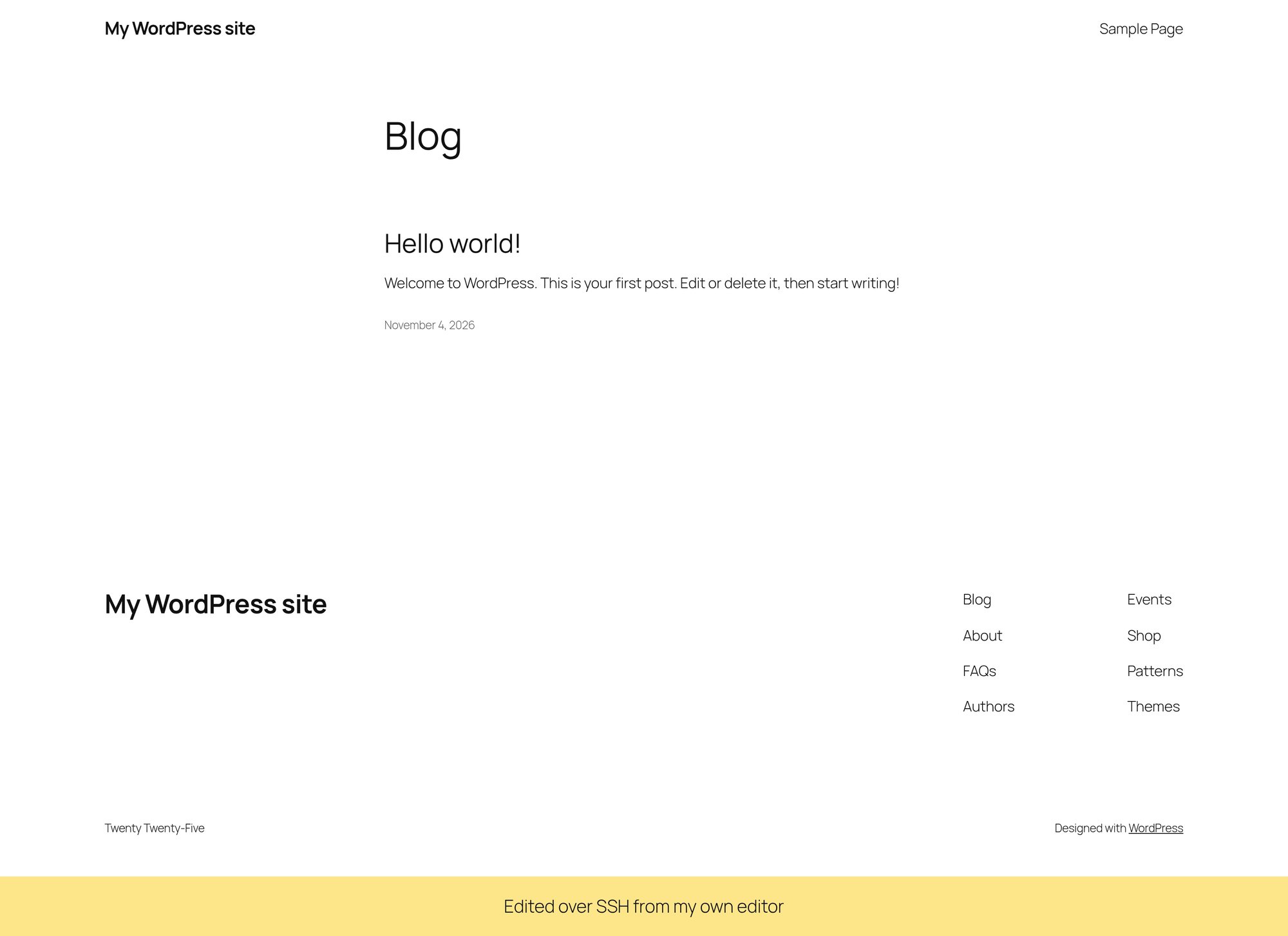
Open wp-content/themes/<your theme>/functions.php and add a few lines at the end. This one prints a line in the footer of every page; save, reload the site, and it is there:
add_action( 'wp_footer', function () {
    echo '<p style="text-align:center;padding:1em;'
        . 'background:#fde68a;margin:0">'
        . 'Edited over SSH from my own editor</p>';
} );
Before real work: a child theme
Edit a child theme, not the theme itself. WordPress's own handbook says why: change the parent theme directly and the next time it is updated, your change will disappear. A child theme keeps your functions.php and styles through updates, and its functions.php is loaded as well as the parent's.
Good to know
Said up front:
- SSH comes with every plan, the free plan too, for the stack's owner
- A mistake in functions.php can stop the site. SSH does not go through WordPress, so you can still log in and undo it
- git is there for your theme folder; PHP and WP-CLI are not part of the SSH session
- After the editor beside your site restarts, each editor sets up its server again on the next connect, which takes a moment
Your own editor, the real site's files, and the change live when you save: free, with no card.