Deploy a Flask app with PostgreSQL, free
Put a Flask app online on its own HTTPS address, with a real PostgreSQL database beside it and an editor in the browser, on the free plan. Ours was running in 42 seconds, with the PostgreSQL driver already in the app's environment and the connection string waiting for it.
What you get on the free plan
The free plan (Spark) runs one app with one database. No card needed, and no time limit: if we ever change or end it, you hear from us by email at least 60 days before.
- One app with one database: 2 GB of memory and 2 GB of disk
- VS Code in the browser and a terminal in the same container as the app
- Its own HTTPS address from the first minute
- SSH from your own editor, if you prefer it
- Backed up every night to a separate server, the free plan included
Sign up and take the free plan
Sign up at portal.uppcoder.com, then go to Billing, Available Plans, Spark, Start free. The free plan asks you to confirm your email address first: press Send me the link, then click the link in that email.
Create the app: Flask and PostgreSQL
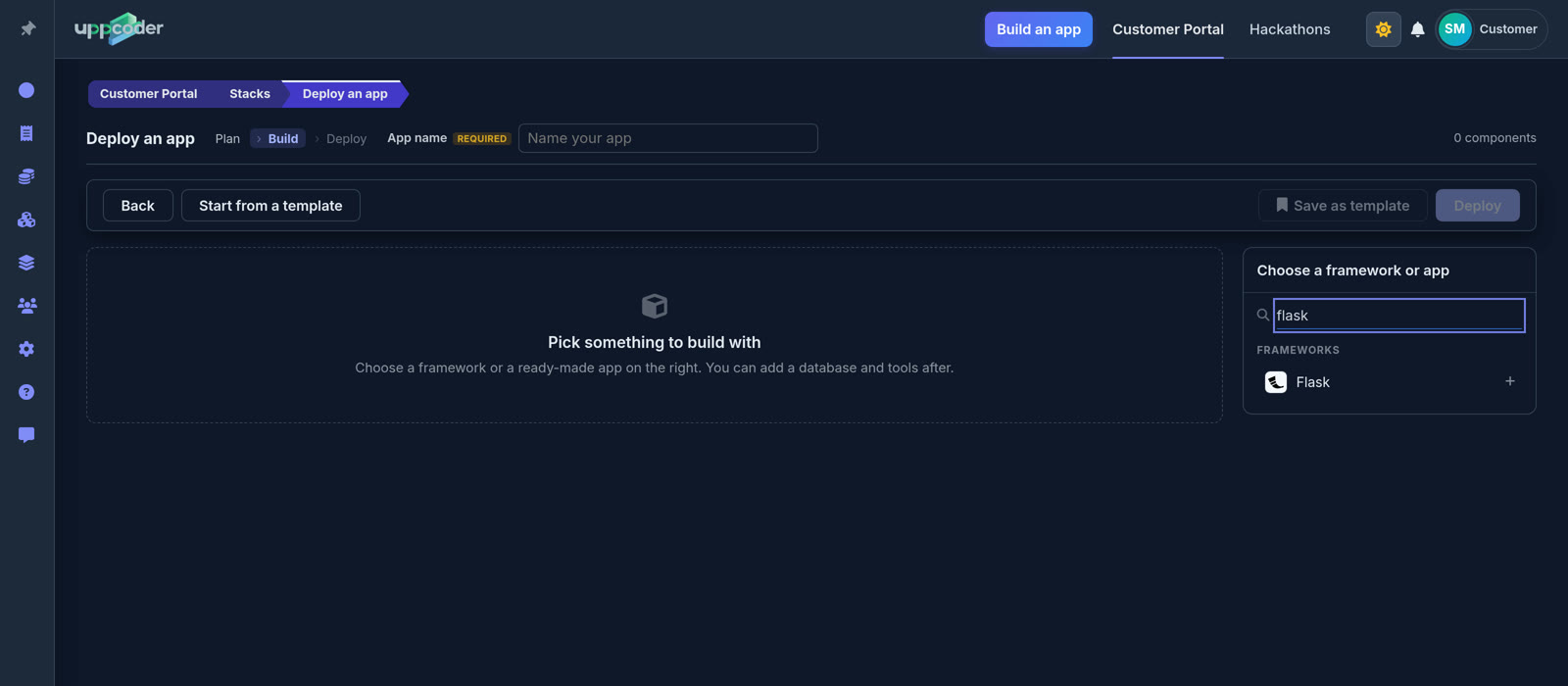
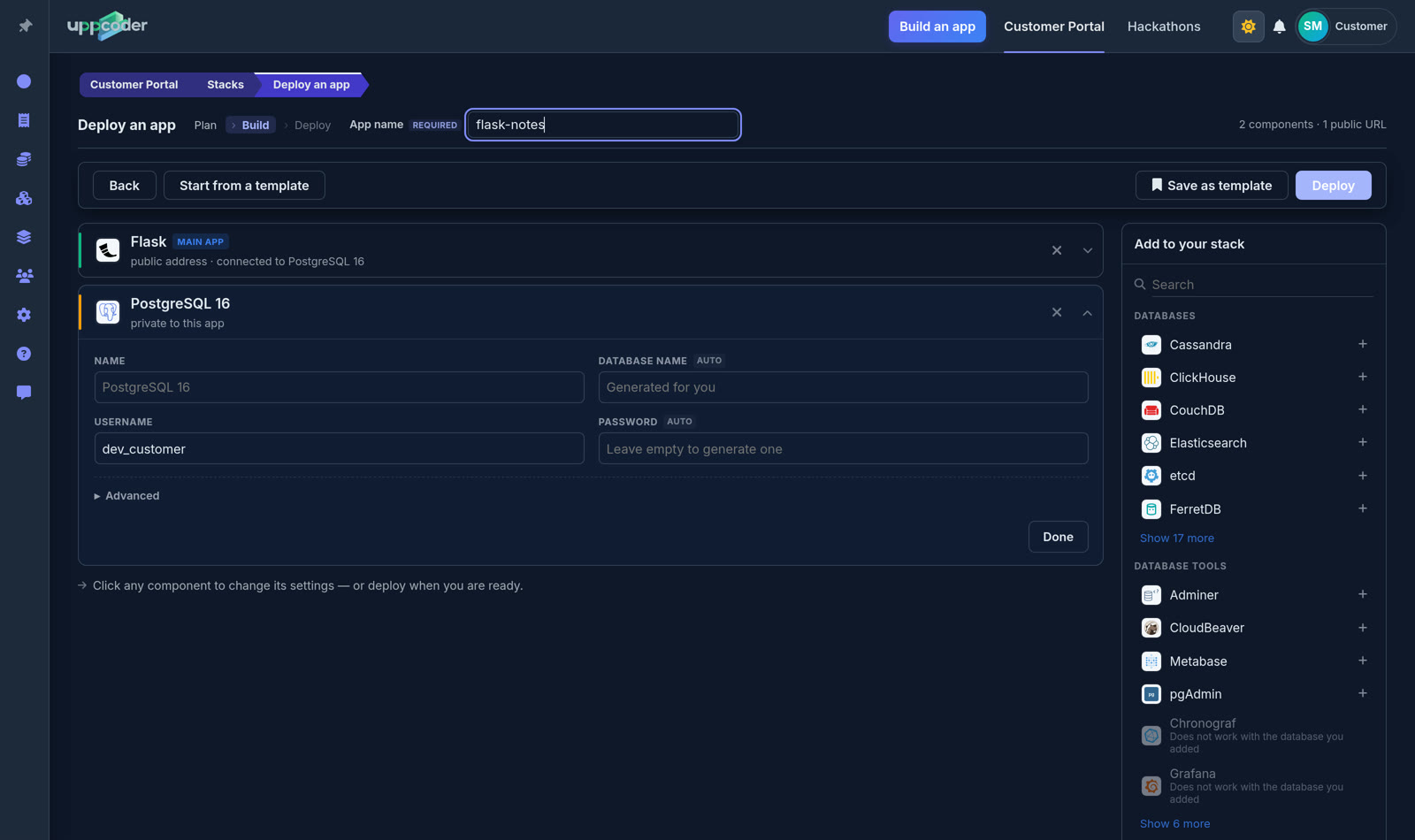
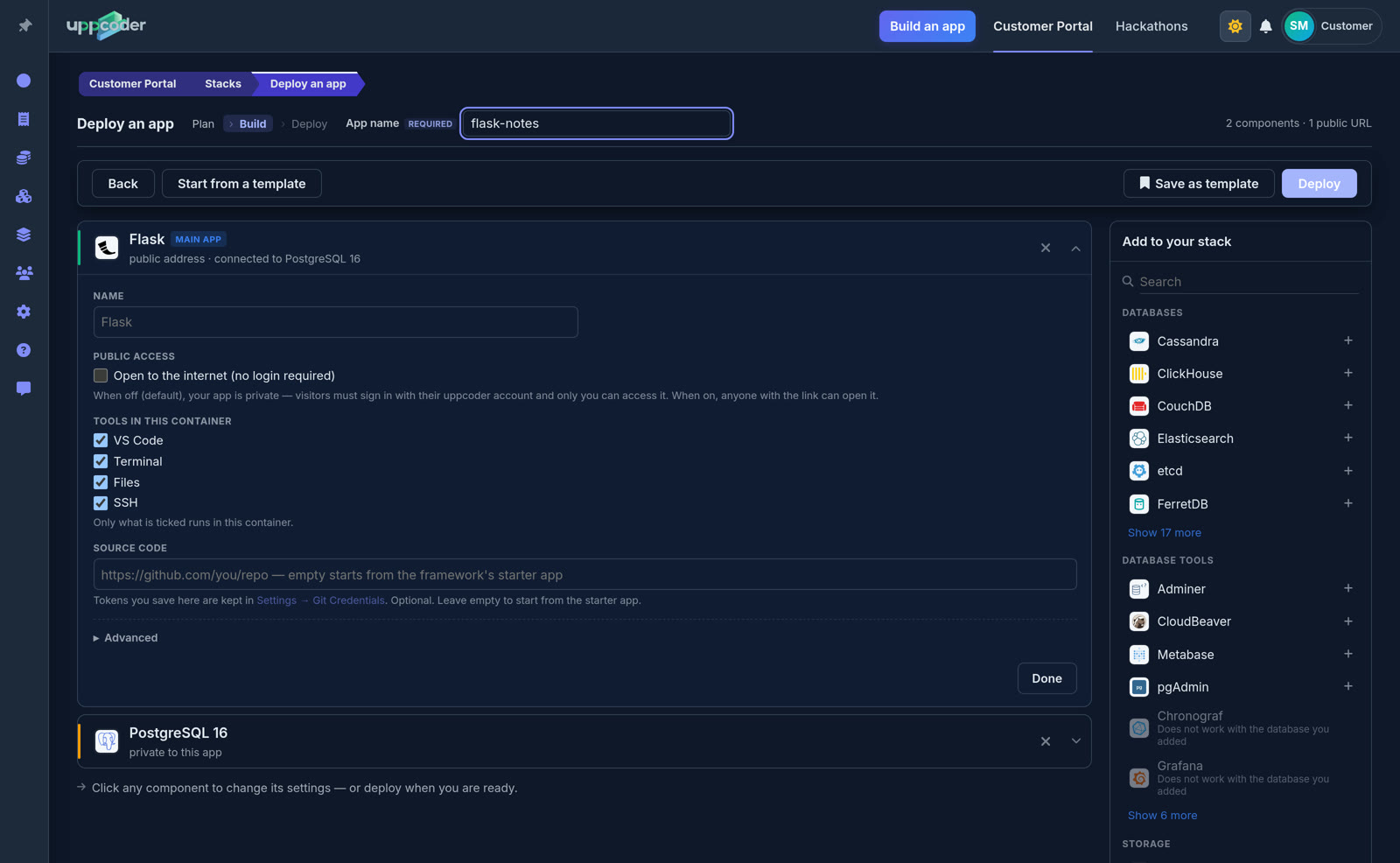
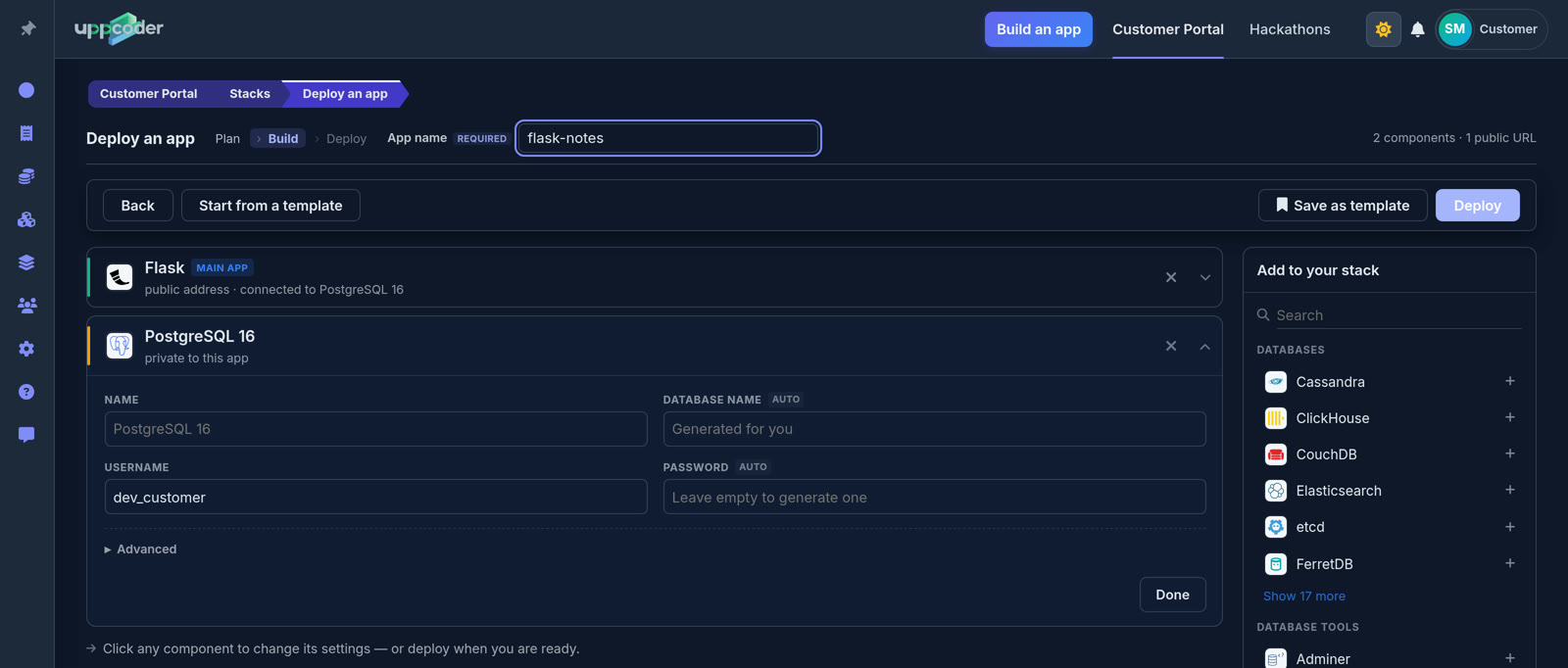
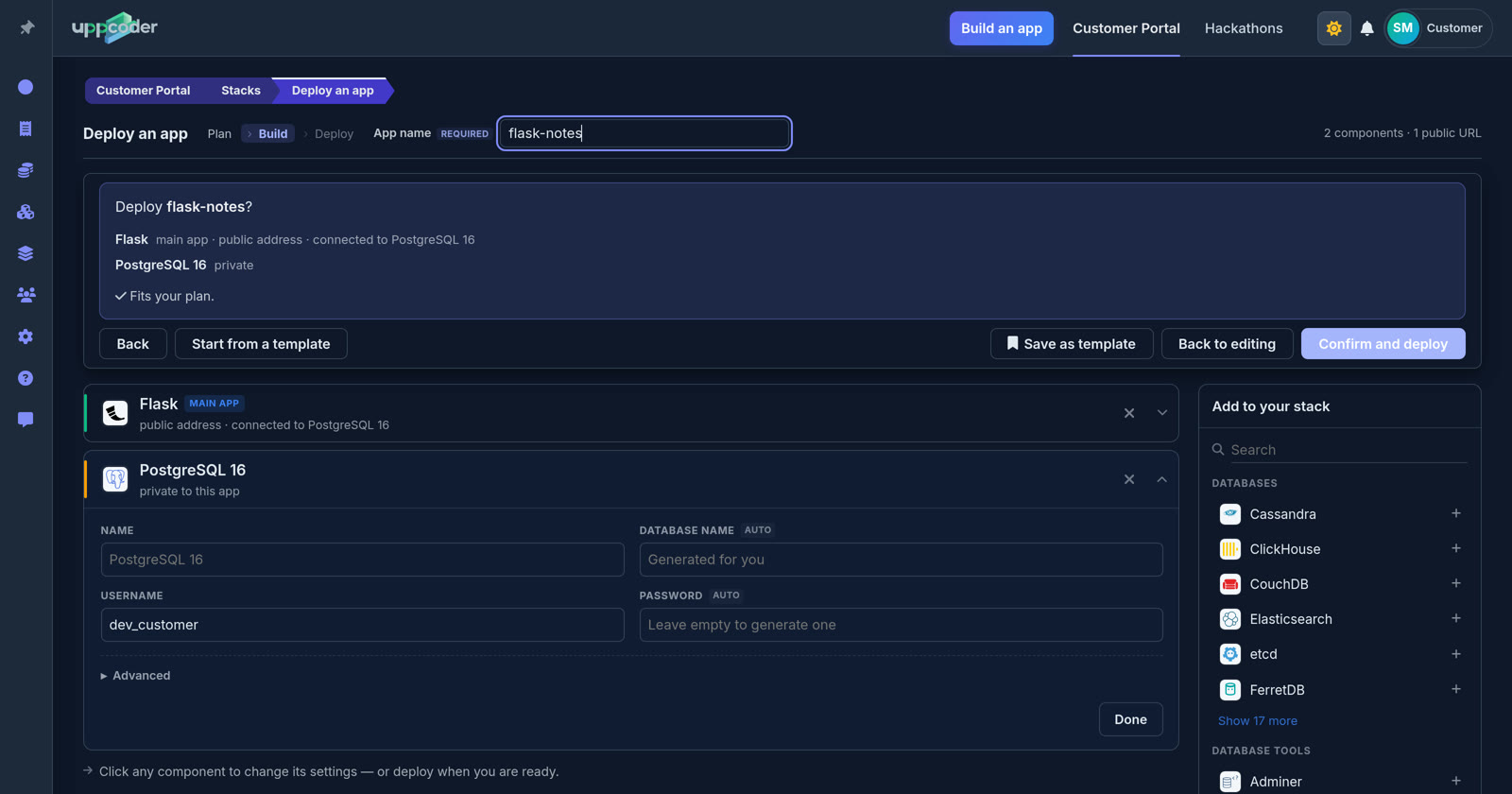
Stacks, Create, Blank stack. Type "flask" in the search box and pick Flask, then search for PostgreSQL and add it: it is connected to the app automatically. Give the app a name. PostgreSQL's username is filled in for you, and the database name and password are generated if you leave them empty. VS Code, Terminal, Files and SSH are ticked by default.
Deploy
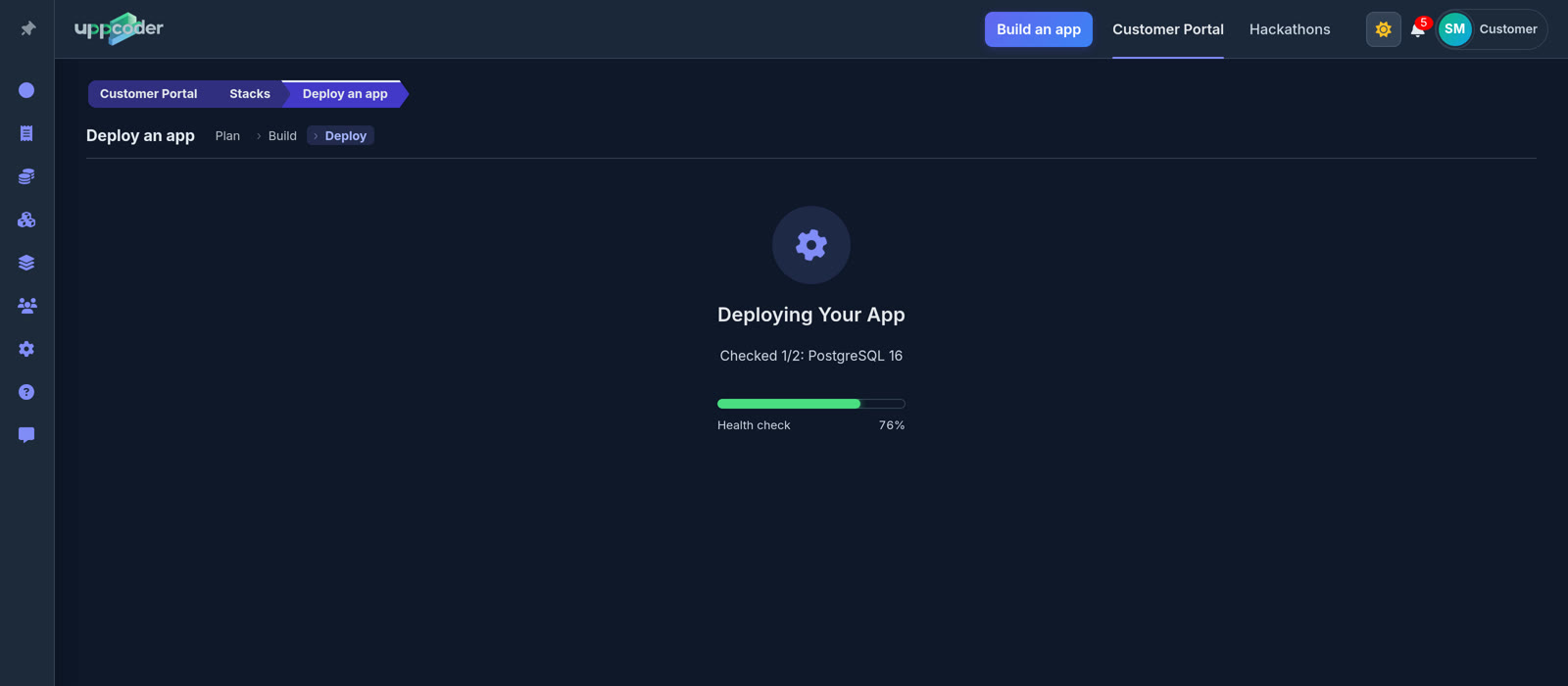
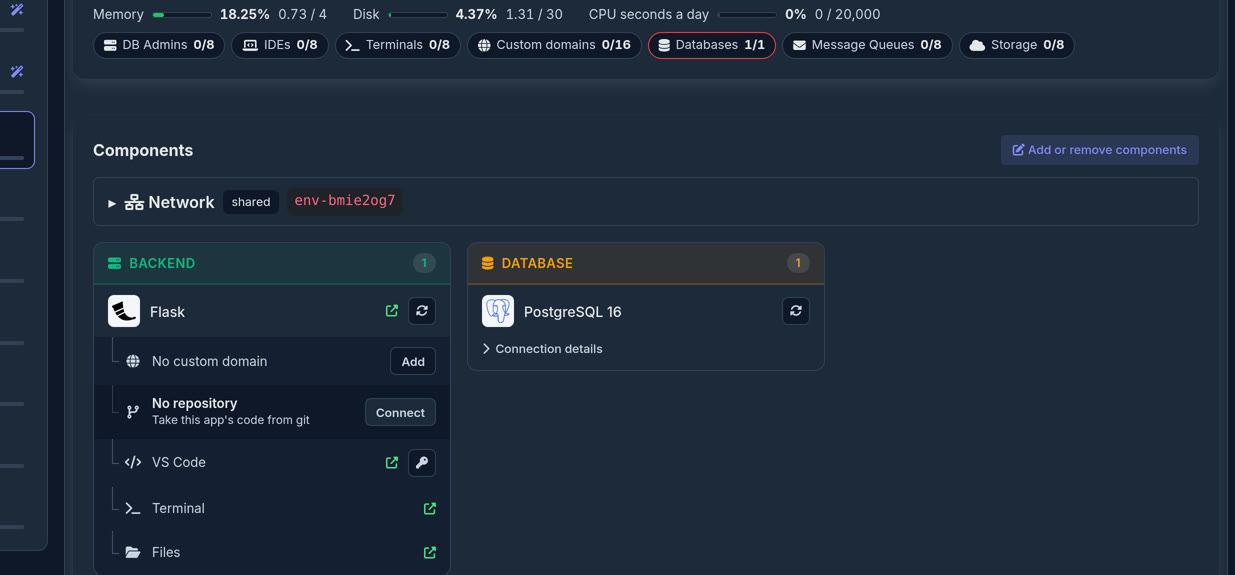
Press Deploy, check the summary, then Confirm and deploy. Ours was live in 42 seconds. The stack page has everything in one place: the app's address, VS Code, the web terminal and the database. Open the address and the starter answers Hello from Flask!. The app starts private, behind your Uppcoder login, until you make it public.

The database is already wired in
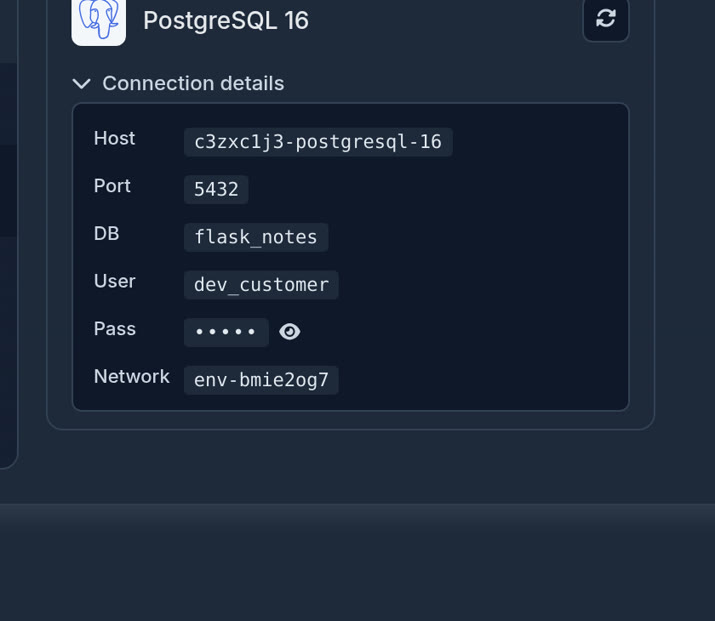
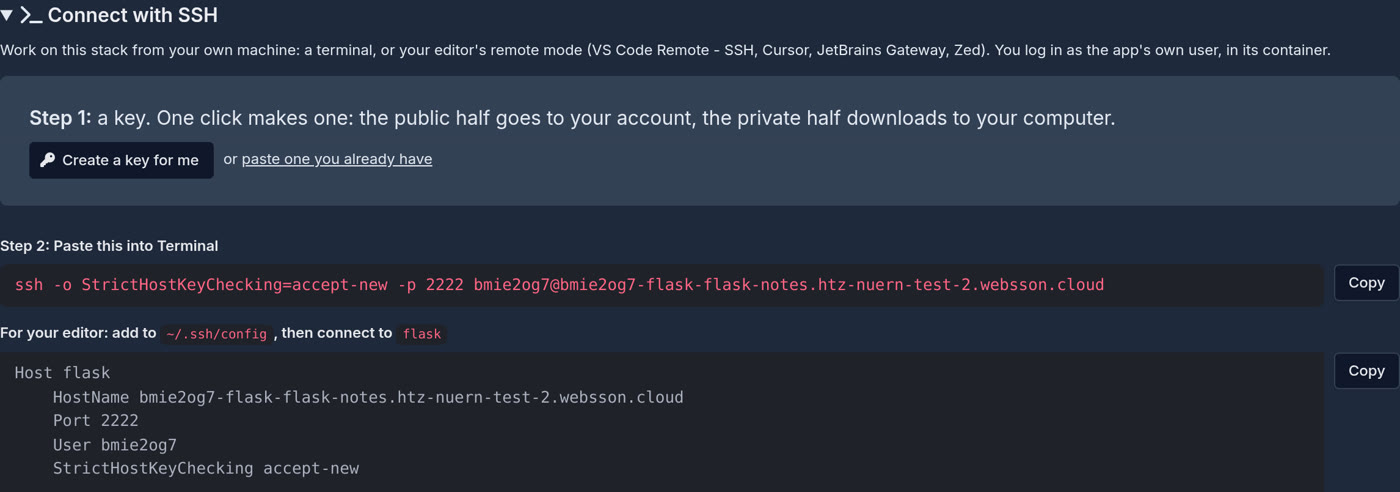
The app gets the whole connection as DATABASE_URL, and the parts as POSTGRES_HOST, POSTGRES_PORT, POSTGRES_DB, POSTGRES_USER and POSTGRES_PASSWORD, so no password sits in your code. psycopg, the PostgreSQL driver, is already in the app's environment, next to Flask and gunicorn. To add another package, run pixi add --feature web-flask requests in the web terminal: it goes into pixi.toml in a few seconds and app.py can import it. The app runs as python app.py with Flask's debug mode on, so every time you save app.py in VS Code, the app restarts with the change. To work from your own machine instead of the browser, open Connect with SSH further down the stack page: create a key with one click, then paste the ssh command into your terminal, or add the lines to ~/.ssh/config and connect from your editor's remote mode (VS Code Remote - SSH, Cursor, JetBrains Gateway, Zed). SSH is on for a new Flask app; you log in as the app's own user, in its container.
A first API on PostgreSQL
Open app.py in VS Code, replace the starter with this and save. It creates a notes table when the app starts and gives you two endpoints. Try them from the web terminal, which runs next to the app: curl -X POST -H "Content-Type: application/json" -d '{"text": "first note"}' http://127.0.0.1:8000/notes, then curl http://127.0.0.1:8000/notes. We ran exactly this code on a fresh app.
import os

import psycopg
from flask import Flask, jsonify, request

DATABASE_URL = os.environ["DATABASE_URL"]

app = Flask(__name__)

with psycopg.connect(DATABASE_URL) as conn:
    conn.execute("CREATE TABLE IF NOT EXISTS notes (id serial PRIMARY KEY, text text NOT NULL)")


@app.get("/")
def hello():
    return "Hello from Flask!"


@app.post("/notes")
def add_note():
    text = (request.get_json(silent=True) or {}).get("text", "").strip()
    if not text:
        return jsonify(error="text is required"), 400
    with psycopg.connect(DATABASE_URL) as conn:
        row = conn.execute("INSERT INTO notes (text) VALUES (%s) RETURNING id", (text,)).fetchone()
    return jsonify(id=row[0], text=text), 201


@app.get("/notes")
def list_notes():
    with psycopg.connect(DATABASE_URL) as conn:
        rows = conn.execute("SELECT id, text FROM notes ORDER BY id").fetchall()
    return jsonify([{"id": r[0], "text": r[1]} for r in rows])


if __name__ == "__main__":
    app.run(host="127.0.0.1", port=8000, debug=True)
Bring your own code
On the stack page, the Flask card has No repository, Connect: paste the repository's https address (GitHub, GitLab, Bitbucket or any other git host), pick the branch, and add an access token if it is private. It is cloned into the app and Pull brings in new commits later. The app is started as python app.py, so keep an app.py at the top of the repository that starts Flask on 127.0.0.1, port 8000, the way the starter does.
Share it
When you want other people to use it, switch Private to Public at the top of the stack page. It changes at once, with no restart, and anyone with the link can open it. VS Code, the terminal and the files always stay behind your login. Prefer your own editor? The stack page also shows how to connect over SSH from VS Code Remote, Cursor, JetBrains Gateway or Zed.
Flask, its database and an editor, live in under a minute, on the free plan.